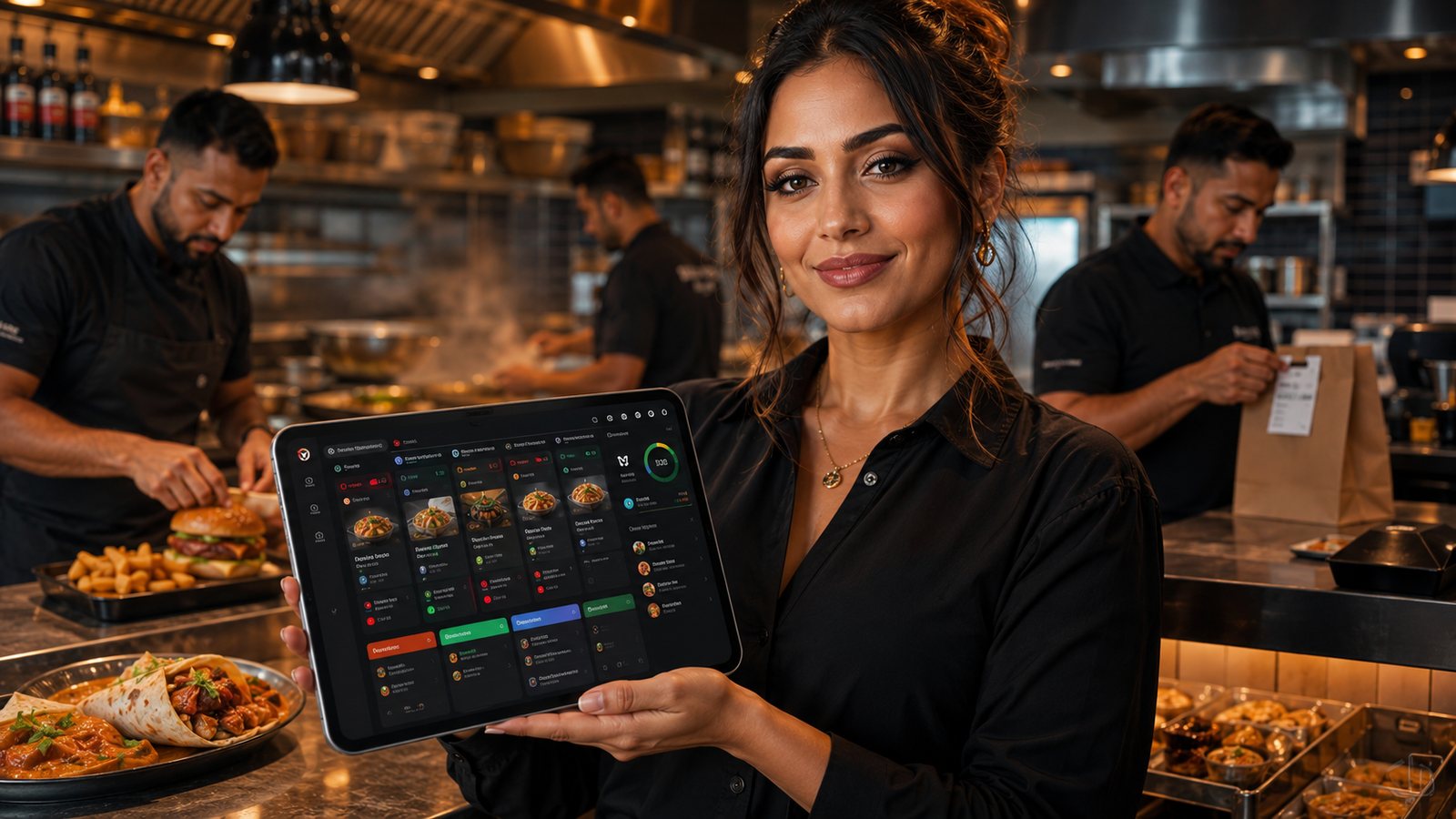
POS hardware should support the order flow without becoming a collection of incompatible devices. Screens, printers, payment terminals, cash drawers, scanners, routers and spare equipment need a documented role, supported connection and fallback.
Build the hardware plan from workstations
| Workstation | Possible equipment | Main decision |
|---|---|---|
| Front counter | Till screen, terminal, receipt printer, cash drawer | Speed, visibility, payment and customer handover |
| Kitchen station | KDS or kitchen printer, bump control | Readable tickets, heat and grease resistance, routing |
| Packing pass | Order display, label or receipt printer | Reuniting split tickets and checking completeness |
| Dispatch | Driver screen, phone or scanner | Correct handover and status update |
| Manager | Secure laptop or tablet | Configuration, reporting and support access |
Till screens and touch displays
Check:
- screen size and readability;
- glove or wet-hand use where relevant;
- stand stability;
- cable routing;
- supported operating system;
- brightness and viewing angle;
- cleaning guidance;
- replacement process.
A consumer tablet may be suitable in some roles, but confirm continuous charging, heat, enclosure and support.
Payment terminals
- Integrated or standalone operation.
- Countertop, portable or driver use.
- Wi-Fi, mobile and Ethernet connectivity.
- Refund workflow.
- Terminal-to-POS amount transfer.
- Device inventory and inspection.
- Settlement and batch reporting.
- Replacement and incident support.
Integration reduces keying errors but requires a clear fallback if the POS or terminal connection fails.
Printers
Different jobs may need different printers:
- customer receipts;
- kitchen tickets;
- packing labels;
- driver or collection slips.
Confirm paper width, cutter, interface, print language, supported drivers, environmental limits and spare availability.
Cash drawers
- Connect to the correct till or printer.
- Restrict manual opening.
- Use individual staff accountability where practical.
- Record paid-outs and cash refunds.
- Keep spare keys controlled.
- Reconcile at shift end.
Barcode scanners
Scanners can help where the operation sells packaged items, manages stock or uses labels. They are not automatically useful for every takeaway.
Check symbology support, wired or wireless connection, charging, range, label quality and how scanned products map to the POS.
Network and power
- Document wired and wireless connections.
- Separate guest Wi-Fi.
- Use supported routers and switches.
- Reserve IP addresses where required.
- Label cables and ports.
- Consider backup connectivity.
- Use appropriate surge protection or UPS for critical equipment.
Compatibility before purchase
Obtain written confirmation of:
- model and firmware support;
- operating-system requirements;
- USB, serial, Ethernet, Bluetooth or Wi-Fi interface;
- driver availability;
- power supply;
- country and payment certification where relevant;
- warranty and replacement terms.
Do not buy solely from a generic marketplace listing and assume the POS supplier will support it.
Spare and fallback plan
| Failure | Prepared fallback |
|---|---|
| Front till fails | Secondary supported device or controlled manual ordering |
| Kitchen printer fails | Re-route to another printer or KDS with marked tickets |
| Terminal fails | Approved alternative terminal or payment method |
| Internet fails | Documented offline capability or channel pause |
| Cash drawer fails | Secure alternative cash process with reconciliation |
Asset register
Record:
- device type and purpose;
- manufacturer and model;
- serial number;
- location;
- supplier and support contract;
- purchase or rental status;
- firmware or operating system;
- warranty date;
- replacement or spare.
Acceptance test
- Normal service load.
- Complex order and long ticket.
- Refund and reprint.
- Network reconnection.
- Power restart.
- Device replacement.
- Cleaning and end-of-day routine.
- Fallback during active service.
Hardware is ready only when staff can identify failure, switch to the approved fallback and return to normal service without losing orders or financial records.
Place equipment for the real environment
Review:
- heat, steam, grease and dust;
- risk of liquid spills;
- customer and delivery-driver access;
- cable trip hazards;
- screen glare;
- ventilation;
- cleaning process;
- secure mounting.
Do not place routers, power adapters or network switches where routine cleaning can disconnect or damage them.
Security and privacy by workstation
- Angle customer displays so private order details are not exposed unnecessarily.
- Lock manager devices when unattended.
- Restrict USB and administrator access.
- Inspect payment terminals.
- Do not display full customer addresses at stations that do not need them.
- Secure discarded receipts and labels containing personal information.
Lifecycle and replacement
Track operating-system support, firmware, battery health and end-of-support dates. Replace equipment through a planned cycle rather than after repeated live-service failure.
When disposing of a device:
- export required records;
- remove it from provider and management accounts;
- securely erase data according to the supplier’s process;
- record disposal or return;
- update the asset register.
Procurement and installation control
For each device, obtain a written specification and record whether it is purchased, rented or supplied as part of a payment contract. Confirm:
- delivery and installation responsibility;
- licence or activation requirements;
- warranty and on-site replacement;
- expected replacement time;
- return conditions;
- configuration backup;
- who pays for accidental damage;
- whether the device remains usable after supplier termination.
Schedule installation outside peak service where possible. Label devices and cables immediately, then test the entire order flow rather than accepting a basic power-on check.
Standardise where it helps
Using fewer supported models can simplify spares, training and troubleshooting. Standardisation should not override a genuine station need: a kitchen printer, portable terminal and manager screen may require different equipment.
Related guides
- POS and Kitchen Systems — the main guide for the wider topic.
- Barcode Scanners and Payment Terminals — a detailed next step for putting this guidance into practice.
- Cash Drawers and Security — a detailed next step for putting this guidance into practice.
- POS Data and Reporting — a closely related operational control to review alongside this page.
- POS System Selection and Setup — a closely related operational control to review alongside this page.