KDS Setup and Configuration
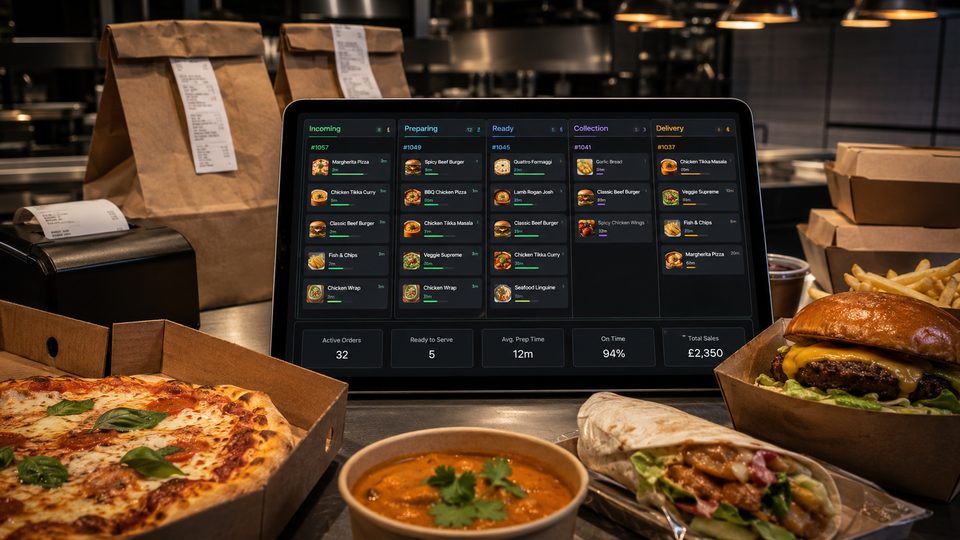
KDS configuration is an operational project, not a screen-installation task. The system must translate menu data into station work, show realistic priorities and preserve a route through service when a device or conne…
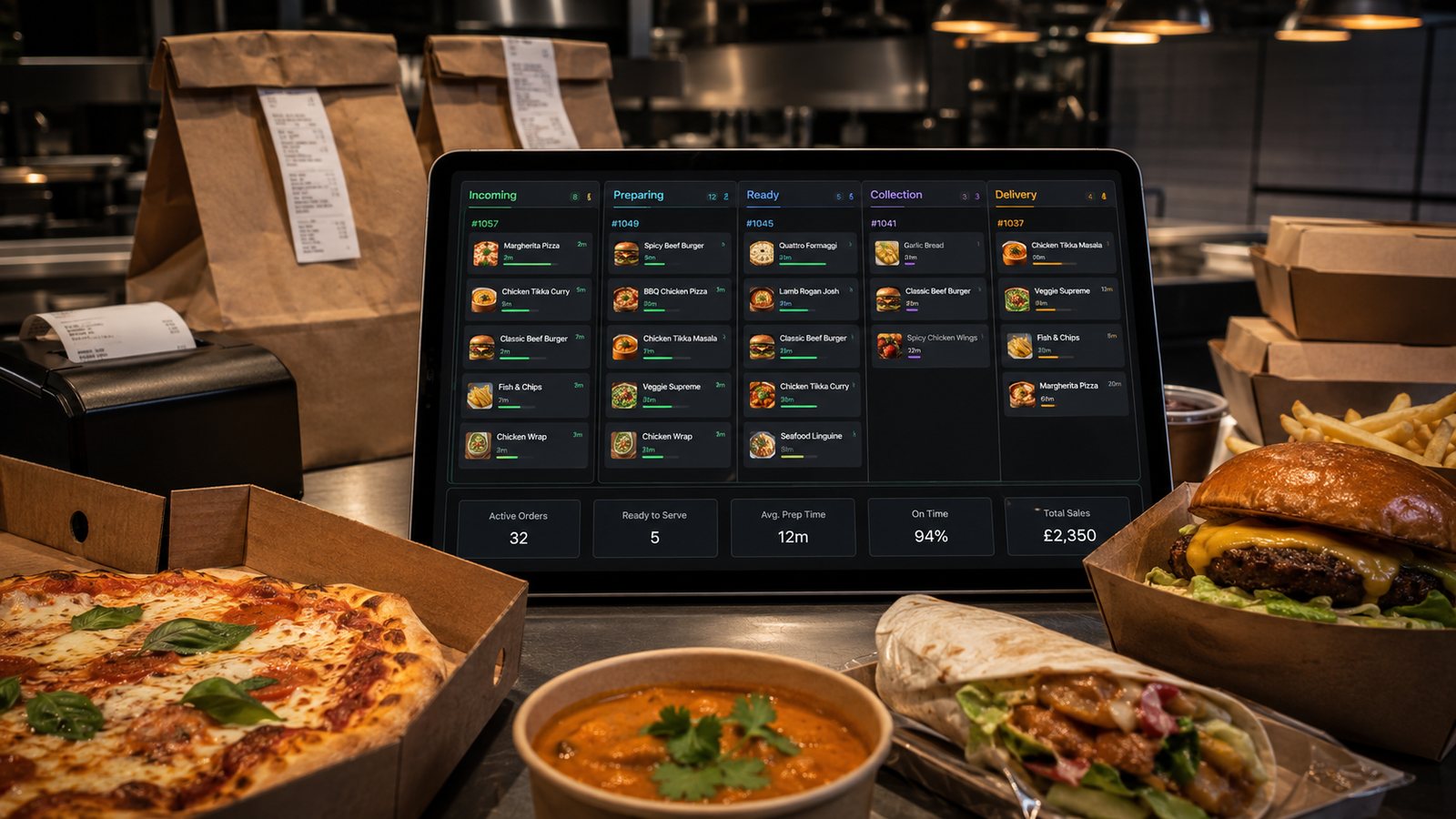
KDS configuration is an operational project, not a screen-installation task. The system must translate menu data into station work, show realistic priorities and preserve a route through service when a device or connection fails.
Prepare the configuration workbook
| Field | Example purpose |
|---|---|
| Item ID and kitchen name | Stable matching and readable output |
| Modifier | Changes ingredient, station, timing or packaging |
| Station route | Fryer, grill, preparation, drinks, packing or several stations |
| Lead time | Planning aid based on real preparation work |
| Priority rule | Immediate, timed, scheduled or held |
| Availability dependency | Ingredient, location, daypart or channel |
| Final check | Station or role responsible for completion |
Build routing from physical work
- List every preparation and handover station.
- Assign each item and component to the station that acts on it.
- Identify products that require several stations.
- Define the final assembly or expeditor view.
- Test bundles, meal deals, half-and-half products and free-text notes.
- Confirm what happens when a station is closed or combined.
Do not route by customer-facing category alone. A “meal deal” may contain work for fryer, drinks and packing even though it appears as one menu item.
Configure timers carefully
Use observed preparation data as a starting point, then test it during service. A single timer for every item can create misleading priorities. Consider:
- item preparation time;
- batching constraints;
- scheduled collection or delivery time;
- travel or driver handover;
- dependency between stations;
- recovery after a delay.
Do not reward staff for bumping work before it is complete. If timers remain permanently red, review capacity and rules rather than adding more colours.
Define statuses and permissions
| Status or action | Operational definition |
|---|---|
| Accepted | The business has committed to fulfil the order |
| Preparing | Work has started or the order is active in the kitchen |
| Ready | All required components have passed the final check |
| Completed | The order has been collected or handed to delivery |
| Bump | Remove from the active view only when the defined work is complete |
| Recall | Restore an order with an audit trail |
Control what each screen shows
Show enough information to act safely, but avoid displaying unnecessary personal or financial data in an open kitchen. Kitchen staff usually need order identifiers, items, modifiers, timing and fulfilment instructions—not full payment details or a customer’s complete contact record.
Test normal and exceptional orders
- single-item and large orders;
- delivery and collection;
- scheduled orders;
- all modifiers and exclusions;
- items routed to several stations;
- cancelled and amended orders;
- duplicate integration messages;
- late marketplace drivers;
- screen, network and controller failure.
Document fallback
Define the trigger for switching to printer or paper, how orders are numbered, how updates are communicated and who reconciles active orders when the KDS returns. Staff should practise this before a peak service.
Review after launch
For the first weeks, review:
- missed or unreadable modifiers;
- incorrect station routes;
- premature completion;
- orders waiting at one station;
- packing omissions;
- staff workarounds;
- device and network incidents.
Roll out in controlled stages
- Use one location or one limited service period.
- Keep the previous output available as a fallback.
- Train each station on its own actions and the whole order flow.
- Nominate a floor lead who can pause or correct routing.
- Record every workaround and missing field.
- Change one configuration group at a time.
- Approve expansion only after stable peak service.
Control configuration changes
Record the item or rule changed, reason, approver, previous value, effective time, test result and rollback. Avoid unlogged routing edits during service. Where the platform supports versioning, keep a known-good configuration that can be restored.
Supplier responsibilities
| Area | Responsibility to clarify |
|---|---|
| Menu mapping | Who creates and validates station rules? |
| Integration | Who investigates missing or duplicated orders? |
| Hardware | Who replaces screens, controllers and bump devices? |
| Updates | Who tests releases against current configuration? |
| Incident support | Which supplier owns the case when systems disagree? |
Practical next step: configure a small representative menu first. Prove routing and recovery before importing every item and promotion.
Related guides
- POS and Kitchen Systems — the main guide for the wider topic.
- Kitchen Display Systems — the broader guide that frames this implementation.
- KDS for Multi-Station Kitchens — a closely related operational control to review alongside this page.
- Kitchen Display System Guide — a closely related operational control to review alongside this page.
Operational, legal and platform requirements can change. Recheck official guidance and supplier documentation before altering a live service.
Related practical guides
 POS and Kitchen SystemsPrinter Setup and TroubleshootingA printer failure during service can hide orders, delay one kitchen station or create duplicate tickets. Troubleshooting should follow a fixed se…Read guide →
 POS and Kitchen SystemsOnline Menu Design MistakesAn online menu is part catalogue, part order form and part kitchen instruction. A design can look attractive while still causing abandoned basket…Read guide →POS and Kitchen SystemsKitchen Printers vs Customer ReceiptsKitchen tickets and customer receipts may originate from the same order, but they serve different users and should not be treated as the same doc…Read guide →
 POS and Kitchen SystemsKitchen Display System GuideA kitchen display system can improve visibility and order control, but only when it fits the kitchen’s workflow. Buying screens before mapping st…Read guide →POS and Kitchen SystemsKDS for Multi-Station KitchensIn a multi-station kitchen, a KDS must coordinate separate teams without losing the order as a whole. The fryer, grill, preparation section and d…Read guide →POS and Kitchen SystemsInternet Connectivity for Takeaway OperationsTakeaway connectivity should be designed around continuity, not headline download speed. Online ordering, payment terminals, POS synchronisation,…Read guide →
Connect customer ordering with operations and profit
Use the wider guide library to check the menu, kitchen, fulfilment, payment and financial implications of each decision.
Browse all practical guides